Skip to Content
XRA
    • Home
    • Odoo Apps
      • Odoo Accounting
      • Odoo Point Of Sale
      • Odoo Sales
      • Odoo CRM
      • Odoo Inventory Software
      • Odoo Human Resource Management
      • Odoo Payroll
      • Odoo Project Management
    • Odoo ERP Industry Solutions
    • Point Of Sale
    • Accounting, Tax and Payroll Solutions
    • Blog
    • Contact Us
    • Jobs
    • FAQ's
  • info@xra.co.za
    Contact Us
XRA
      • Home
      • Odoo Apps
        • Odoo Accounting
        • Odoo Point Of Sale
        • Odoo Sales
        • Odoo CRM
        • Odoo Inventory Software
        • Odoo Human Resource Management
        • Odoo Payroll
        • Odoo Project Management
      • Odoo ERP Industry Solutions
      • Point Of Sale
      • Accounting, Tax and Payroll Solutions
      • Blog
      • Contact Us
      • Jobs
      • FAQ's
    • info@xra.co.za
      Contact Us

    Odoo Leave Management Module

    Create an Employee and Set a Work Schedule
  • All Blogs
  • Human Resource Management Software
  • Odoo Leave Management Module
  • 18 June 2025 by
    XRA
    Odoo Leave Management ModuleCreate an EmployeeHow to set employee working schedule

    Odoo Leave Management Module

    Manage employee leave with ease using Odoo Leave Management. From automated time-off requests and approvals to real-time leave balances and reports, Odoo simplifies HR workflows and improves compliance. Fully integrated with payroll and timesheets for smooth operations. Ideal for businesses of any size.
    odoo

    Create an Employee


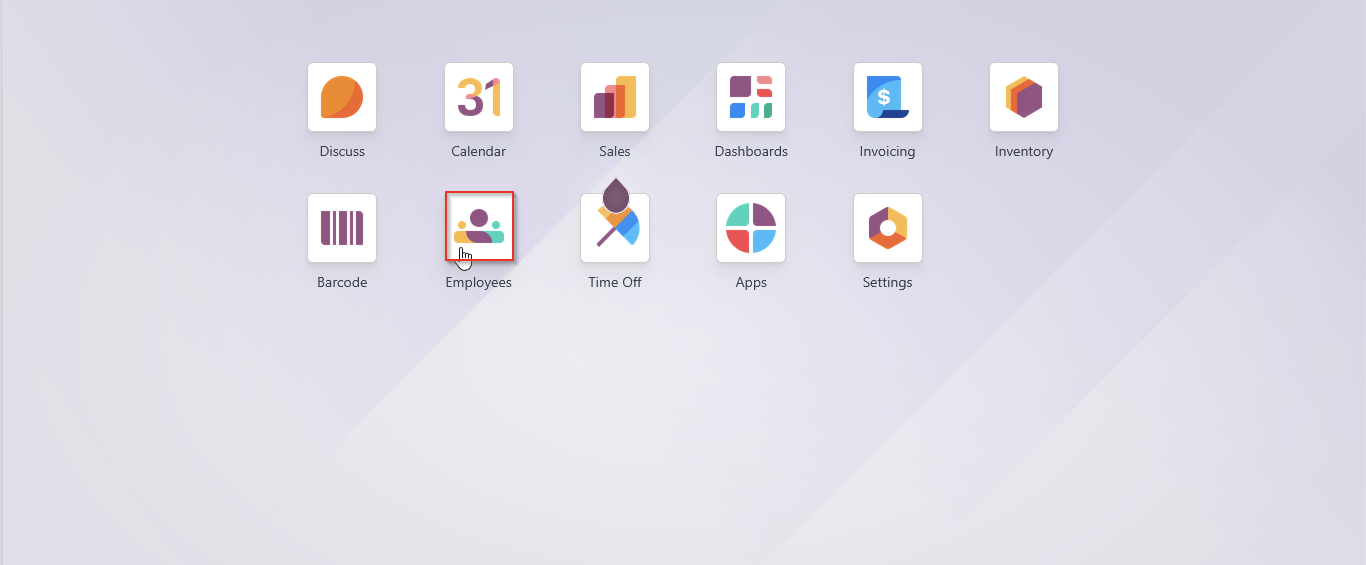
    Step 1:  Enter the Employees Module.  


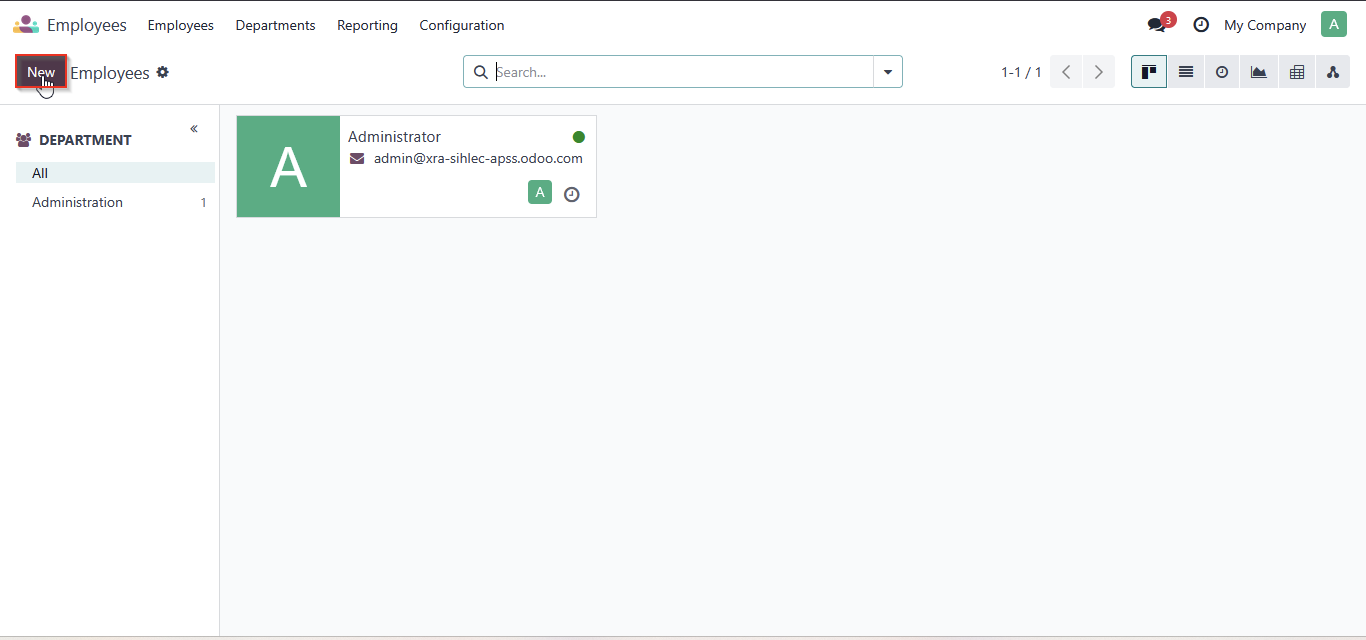
    Step 2:  Click the New button to create a new employee

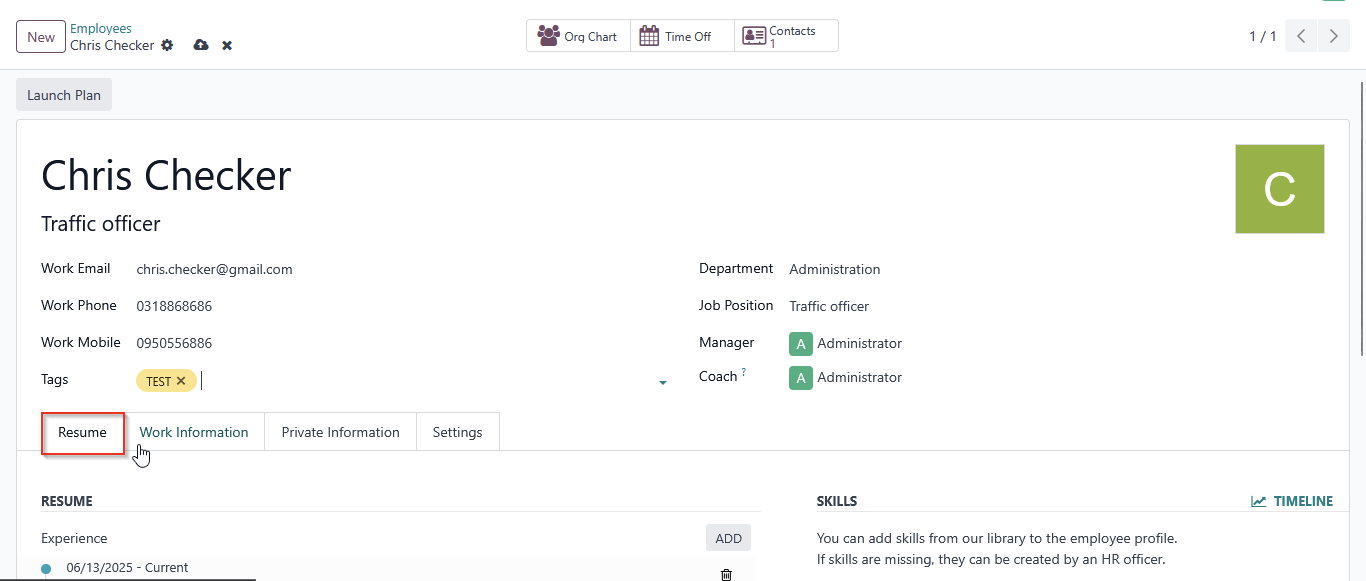
    Step 3:  Click on the Resume tab and fill in all the fields, including Employee Name, Job Title, Work Email, Work Phone, Work Mobile, Tags, Department, Tags,Job Position, Manager, and Coach.
    odoo leave management


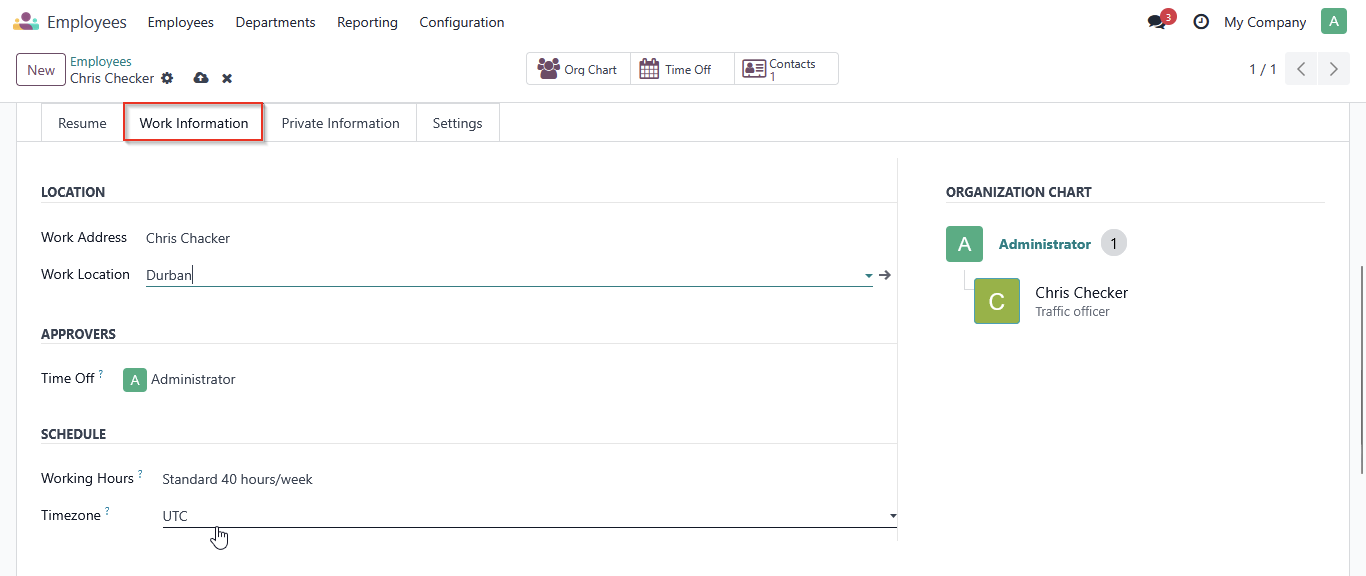
    Step 4:  Under Work Information, add the Work Address, Work Location, Time Off Approver, Working Hours, and Time Zone.  

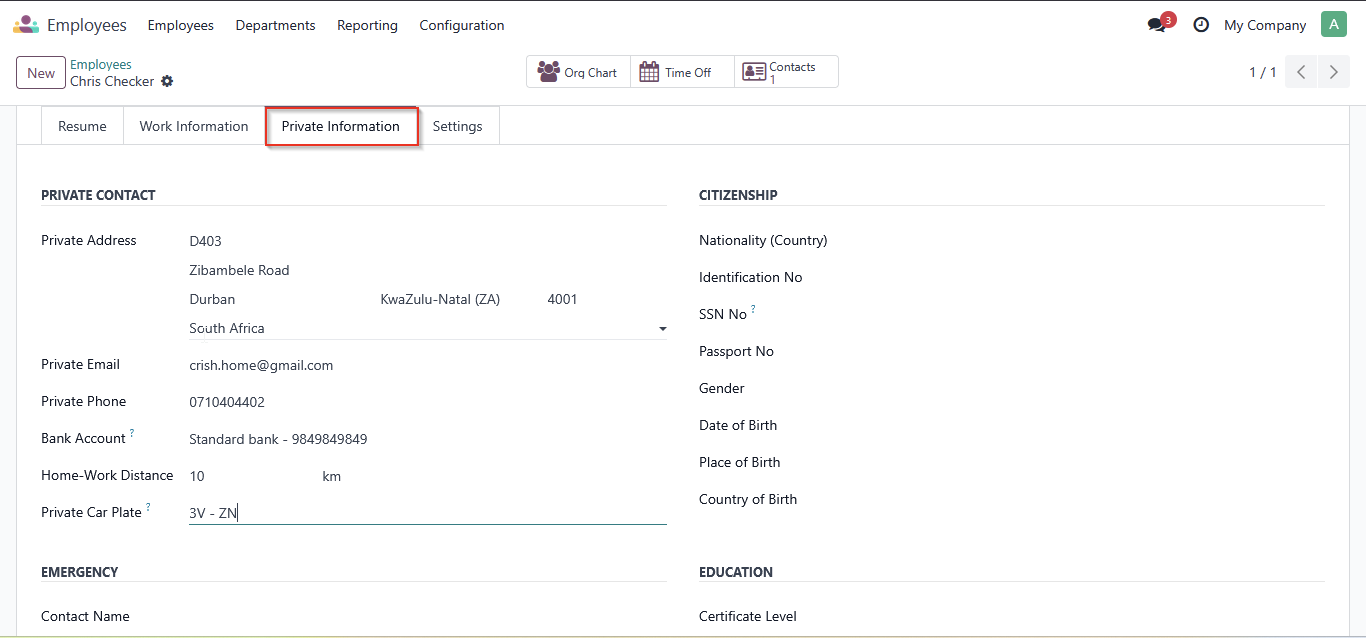
    Step 5:  Under Private Information, fill in the following fields: Private Address, Private Email, Private Phone, Bank Account, Home-Work Distance, and Private Car Plate.
    leave


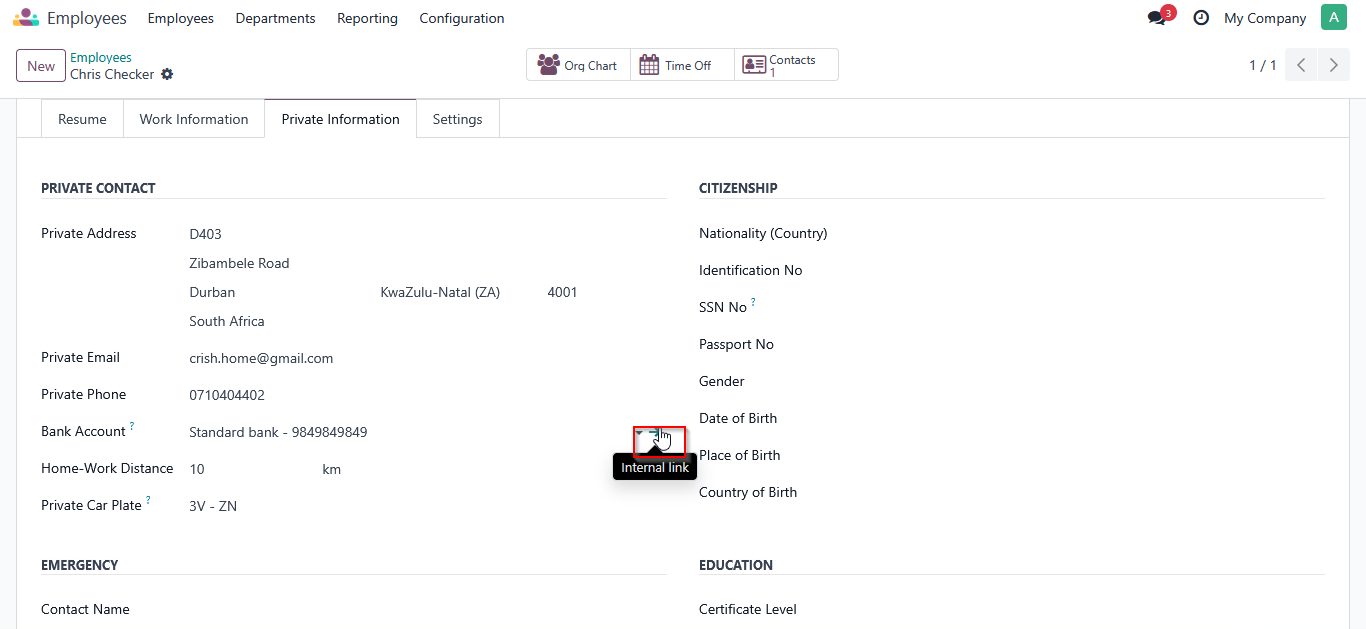
    Step 6:  Under private information you can add employee bank details

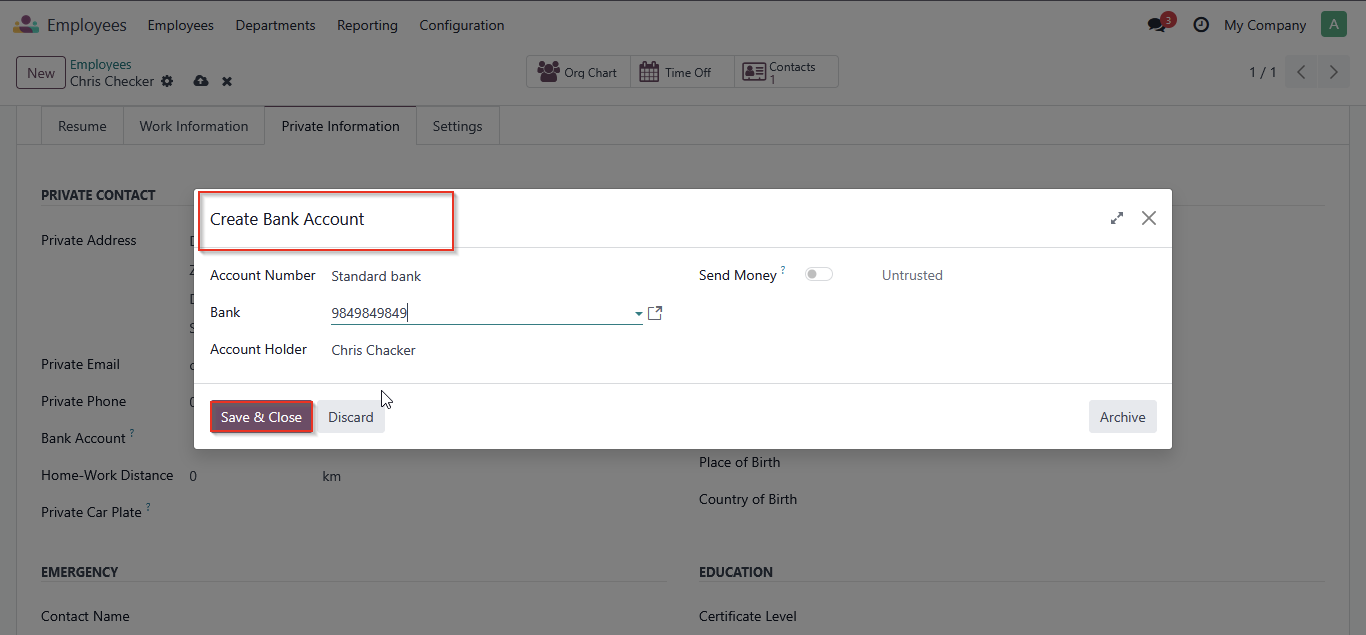
    Step 7:  Edit bank details.  Save and close  odoo

    Step 8:  Under Private Information, add citizen details such as Nationality (Country), Identification Number, SSN Number, Passport Number, Gender, Date of Birth, Place of Birth, and Country of Birth.
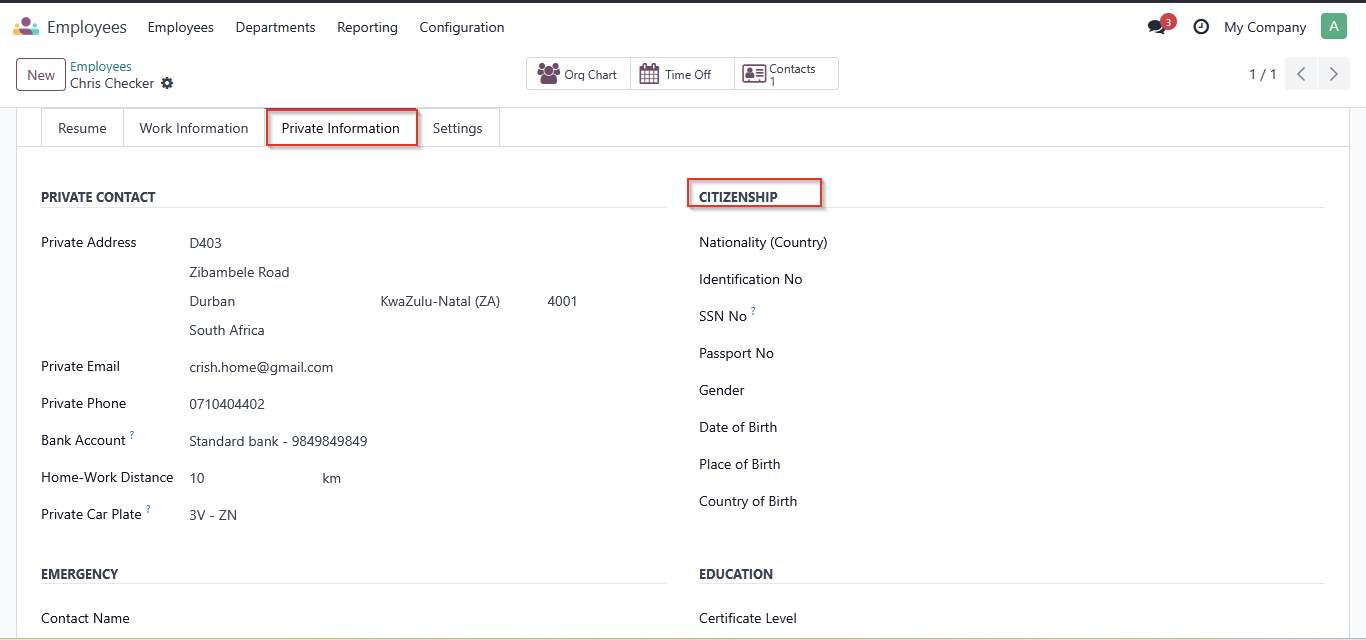

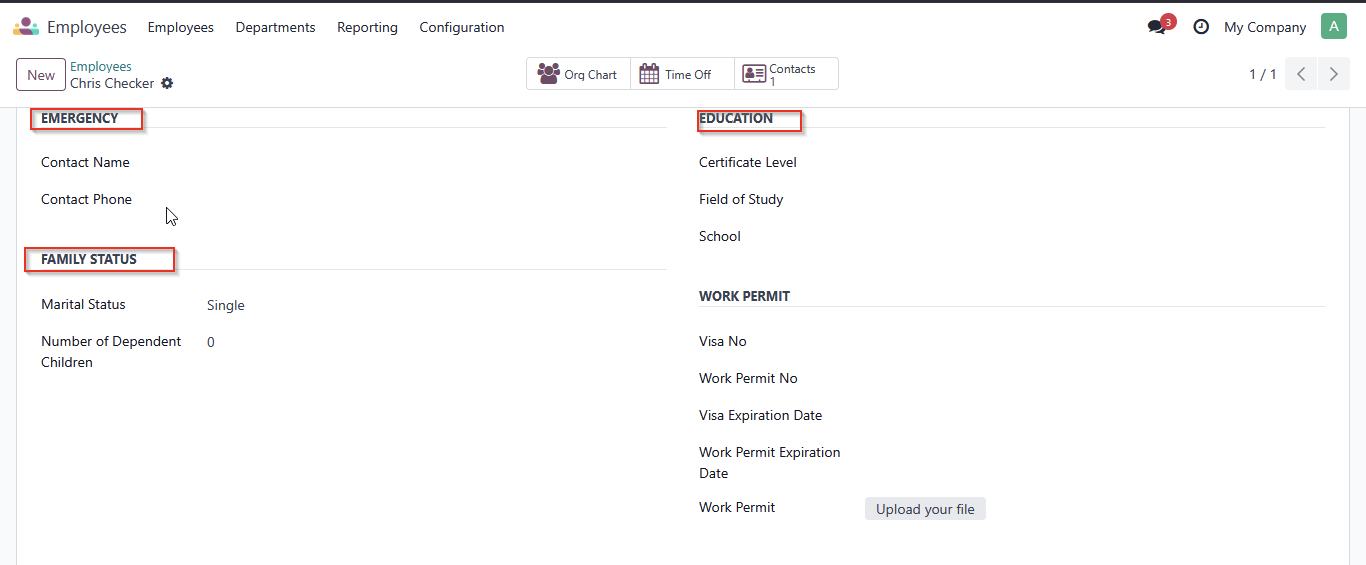
    Step 9:  Fill in the Emergency Contact, Education, and Family Status details

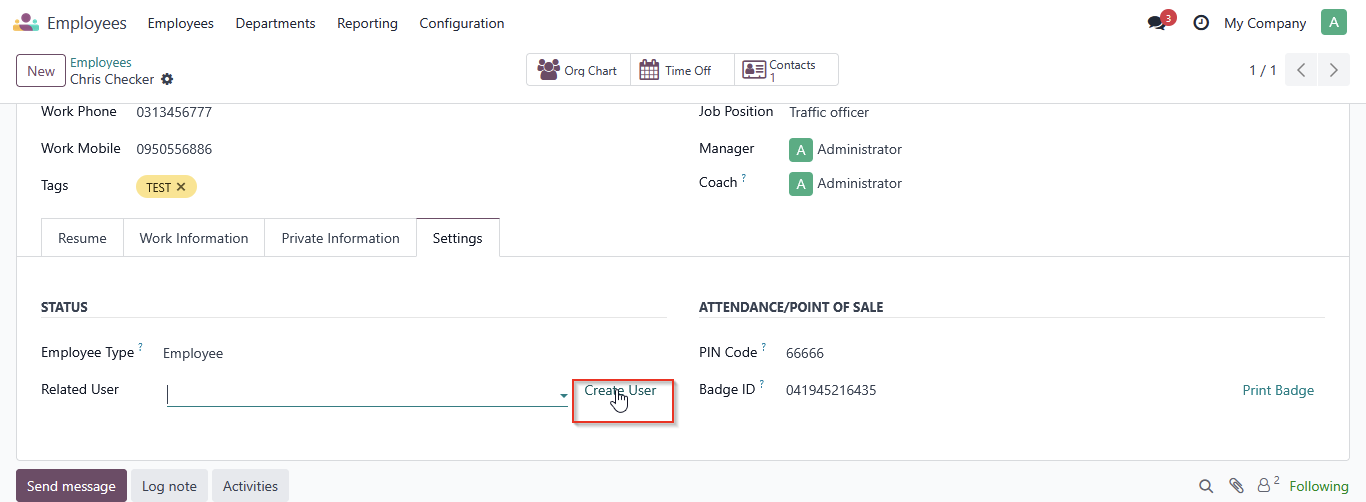
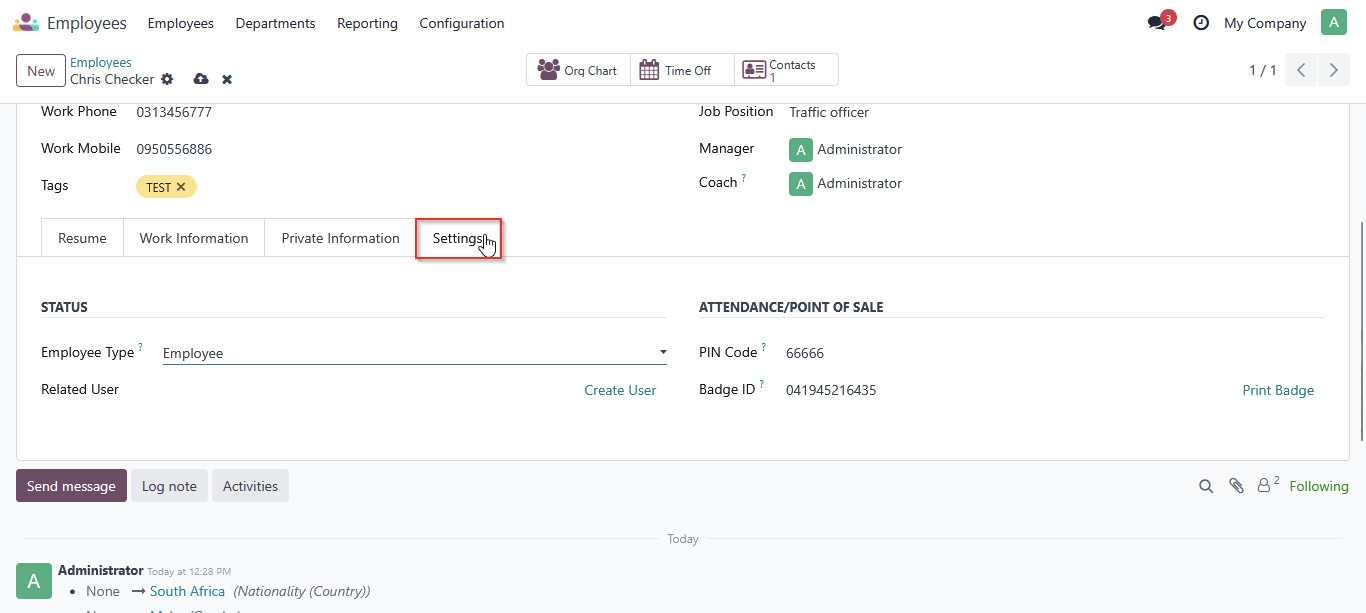
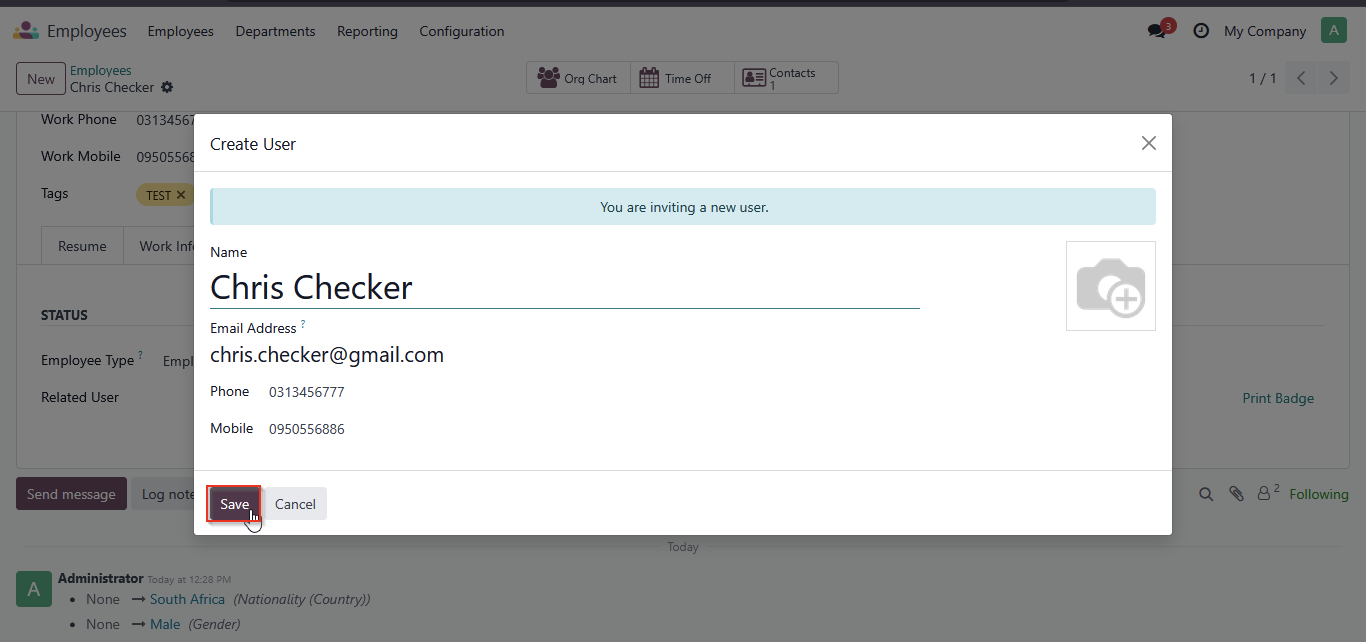
    Step 10:  Under the Settings tab, you can assign a Badge ID and a PIN Code for Point of Sale if the user will be using the POS system. Also, set the Employee Type and link the Related User. 


    You can edit the name, email address, and mobile number, then click Save.

    Step 11: Click on contract 
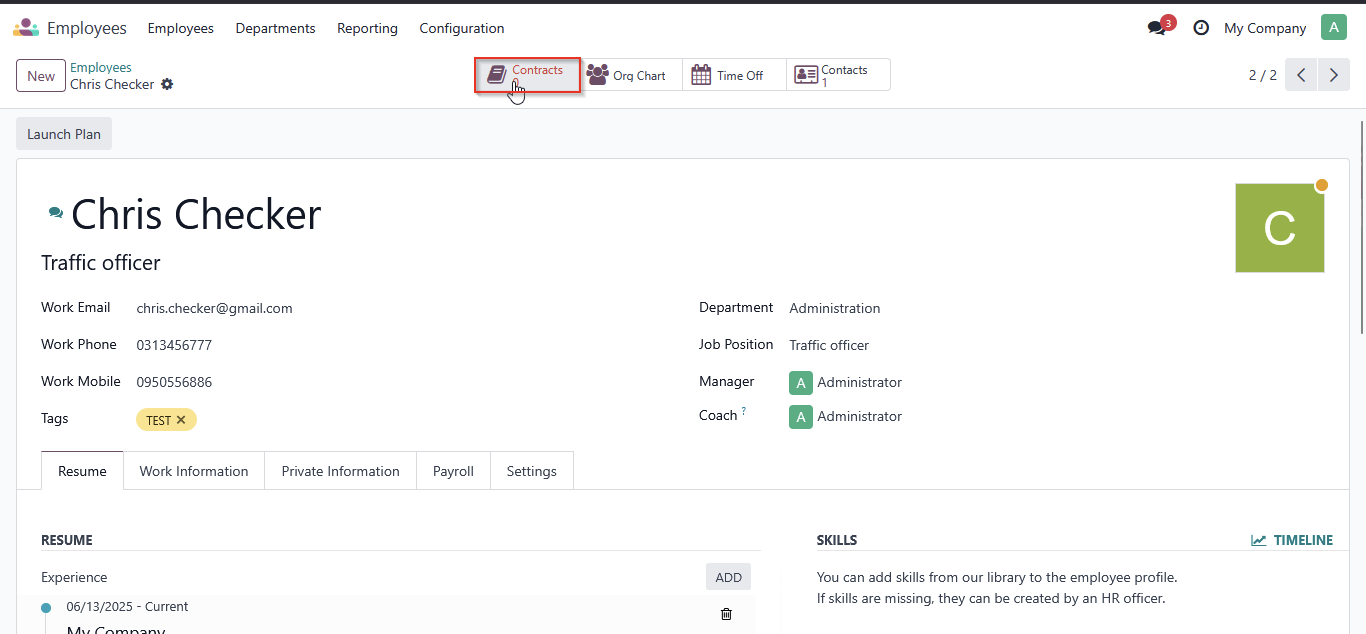

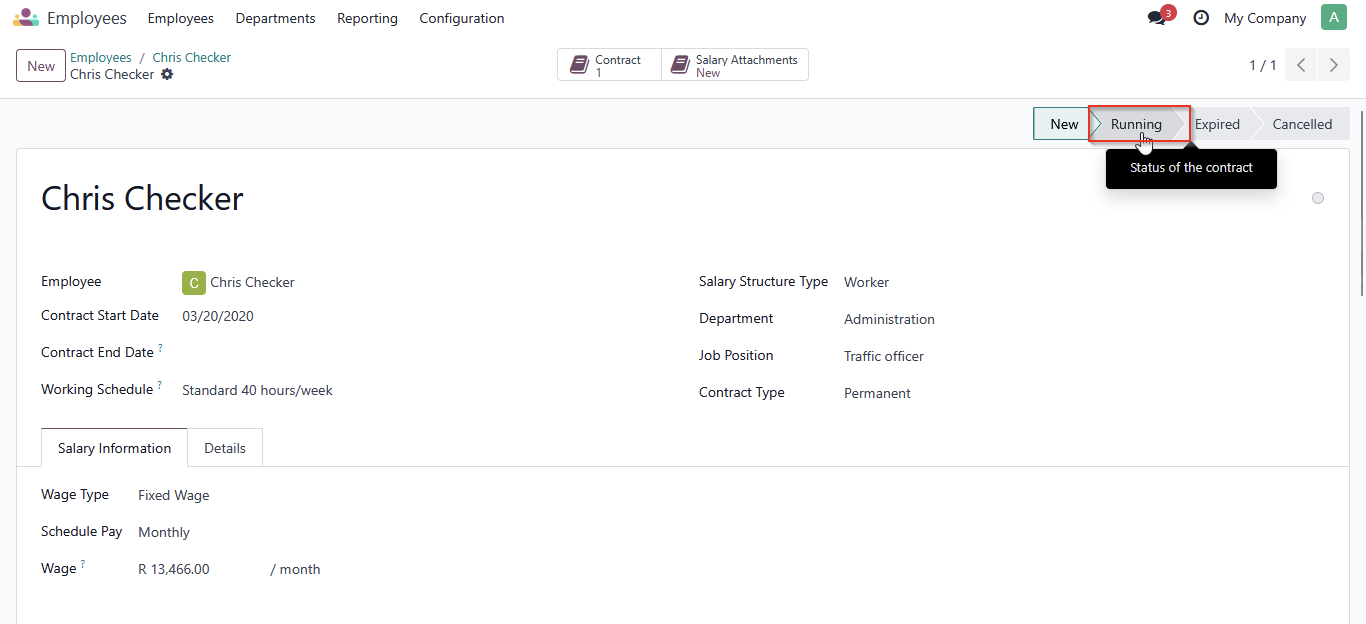
    Edit the contract details such as Contract Start Date, Contract End Date, Working Schedule, Salary Structure Type, Department, Job Position, and Contract Type. 


    How to set employee working schedule
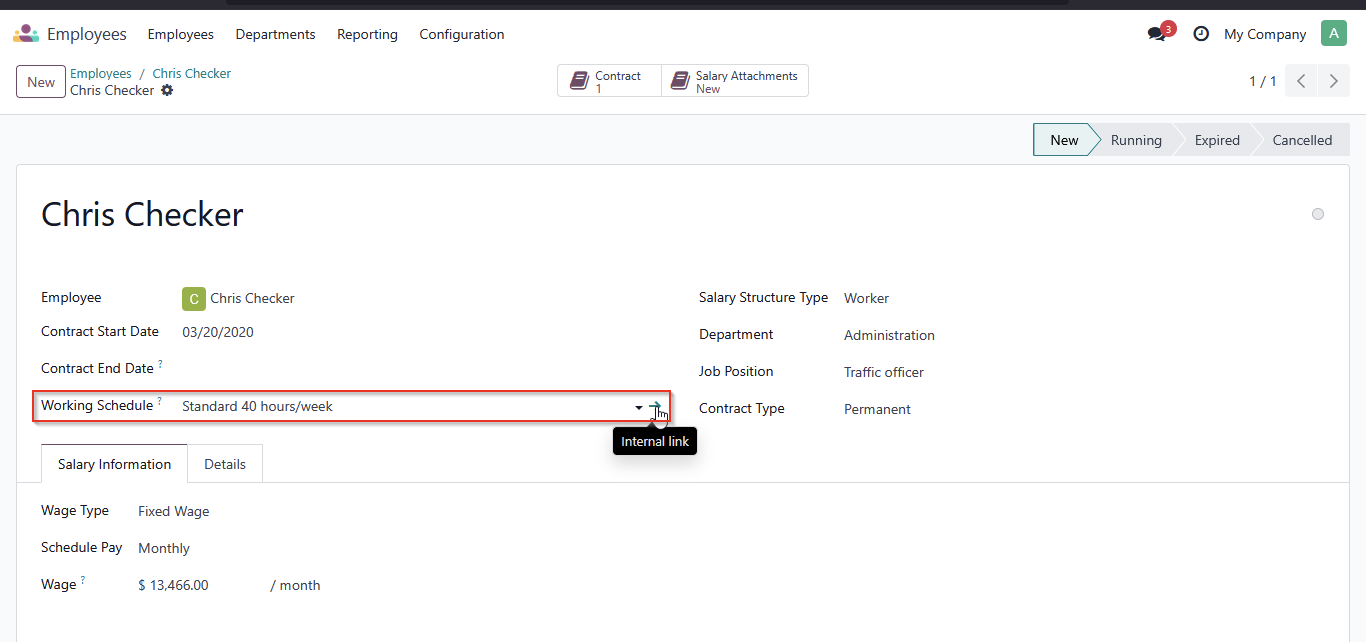

    Step 1: Click on the Internal Link 

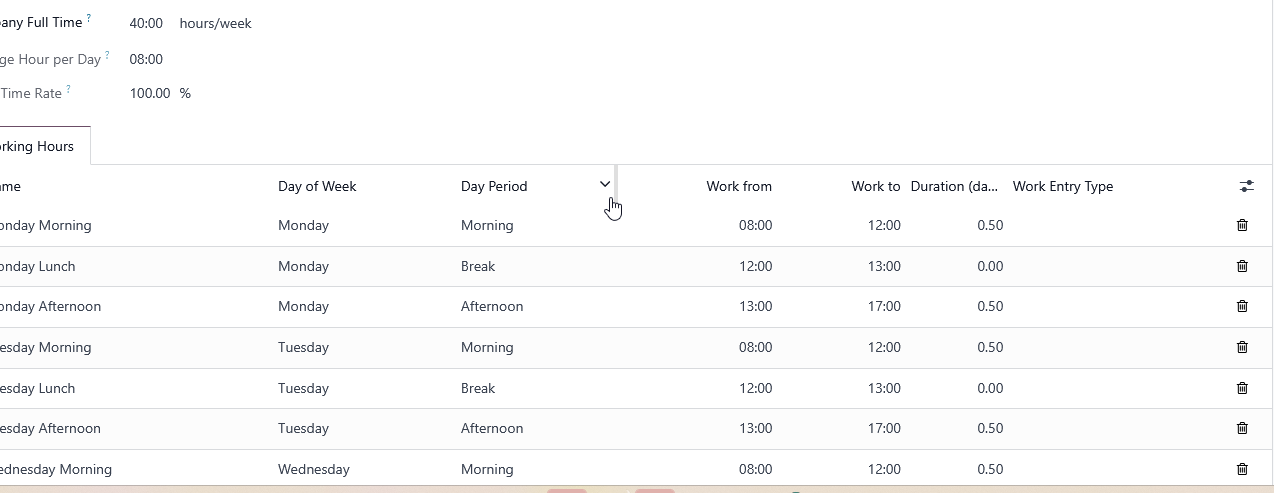
    Step 2: Set up your employee’s working hours according to their actual working schedule and save and close.  

    Step 3: Set Salary information 
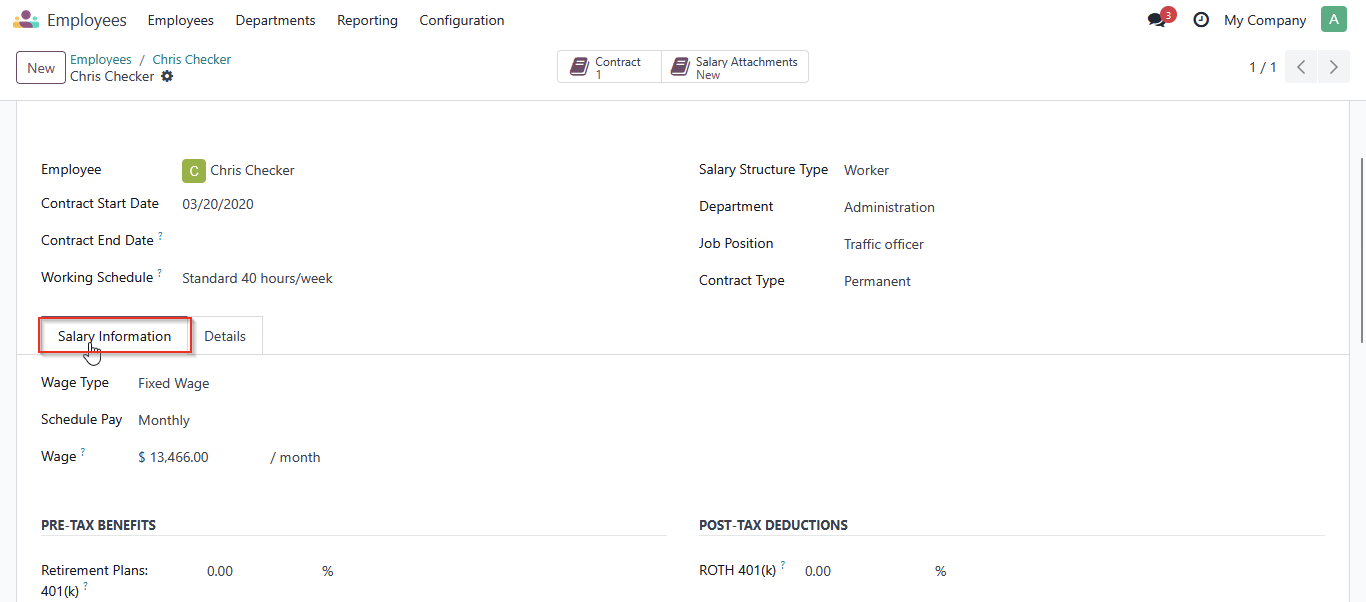
     

    Step 4: Edit details bottom 
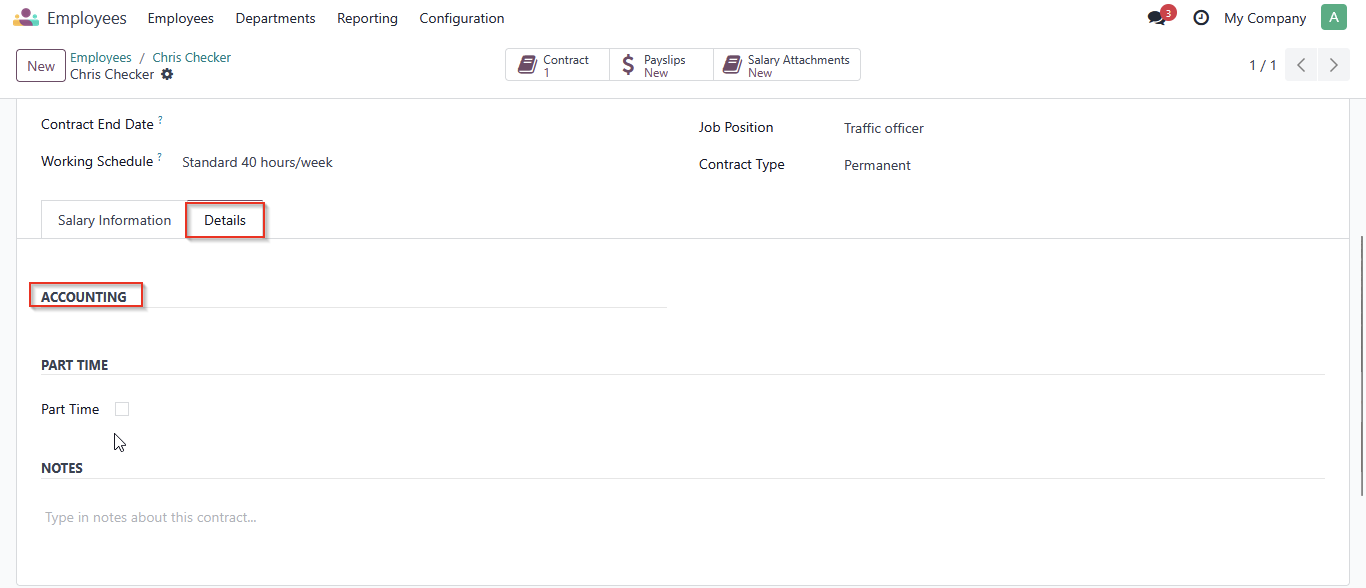
     

    Step 5: Leave the contract on running status 


    Learn how to set up employee leave in Odoo by configuring leave types, defining accrual plans, and loading public holidays.

    in Human Resource Management Software
    Our blogs
    • ​
    • Accounting Software
    • Human Resource Management Software
    • Retail Software
    • Warehouse Management
    • Marketing Software
    • CRM and Sales
    • e-Commerce
    • Supply Chain Software
    • Case Studies
    • Odoo
    • Accounting and Tax
    • Inventory Management
    • Payroll Software
    • Odoo Manufacturing ERP
    • Payroll
    Revamping the World of Recruitment


    •  Durban:  031 220 2815        Johannesburg:  010 141 1490
    • info@xra.co.za


    Social Media

    Respecting your privacy is our priority.

    Allow the use of cookies from this website on this browser?

    We use cookies to provide improved experience on this website. You can learn more about our cookies and how we use them in our Cookie Policy.

    I agree
    Only allow essential cookies